How to Animate a Drawing with AI: From Scan to a 5-Second Video
 Zorvel Team
Photograph or scan a drawing, prepare the image and turn it into a short AI video with Zorvel's Drawings to Life. One real example, the steps and the cost per run.
You do not need animation software to see a drawing move. This guide shows how to bring a drawing to life with AI: turn it into an image you can upload, run it through Zorvel's Drawings to Life, and read the 5-second AI video that comes back.
It is not a lesson in frame-by-frame animation. A video model generates all of the motion from one picture, so you choose the drawing but not the movement. The example below is the one real run published on the effect page; the preparation advice comes from the effect's requirements, not from a test of many drawings.
What you get, and what you do not
- You get one 5-second video without sound, made from one image.
- You do not get a choice of movement, a set of frames to edit, or a promise that every line stays where it was. Two runs of the same drawing can move differently.
Turn the drawing into a good image
- Photograph or scan it flat. Avoid glare from a lamp or window and the shadow of your phone. A scanner or even daylight works best.
- Keep the whole drawing in frame, with some space around the edges, so nothing you want to move is cut off.
- Crop away the desk and, for a digital drawing, the app's buttons and panels. The model treats everything in the image as part of the scene.
- Save it as a JPEG or PNG of up to 10 MB. Use a drawing you made or have permission to use.
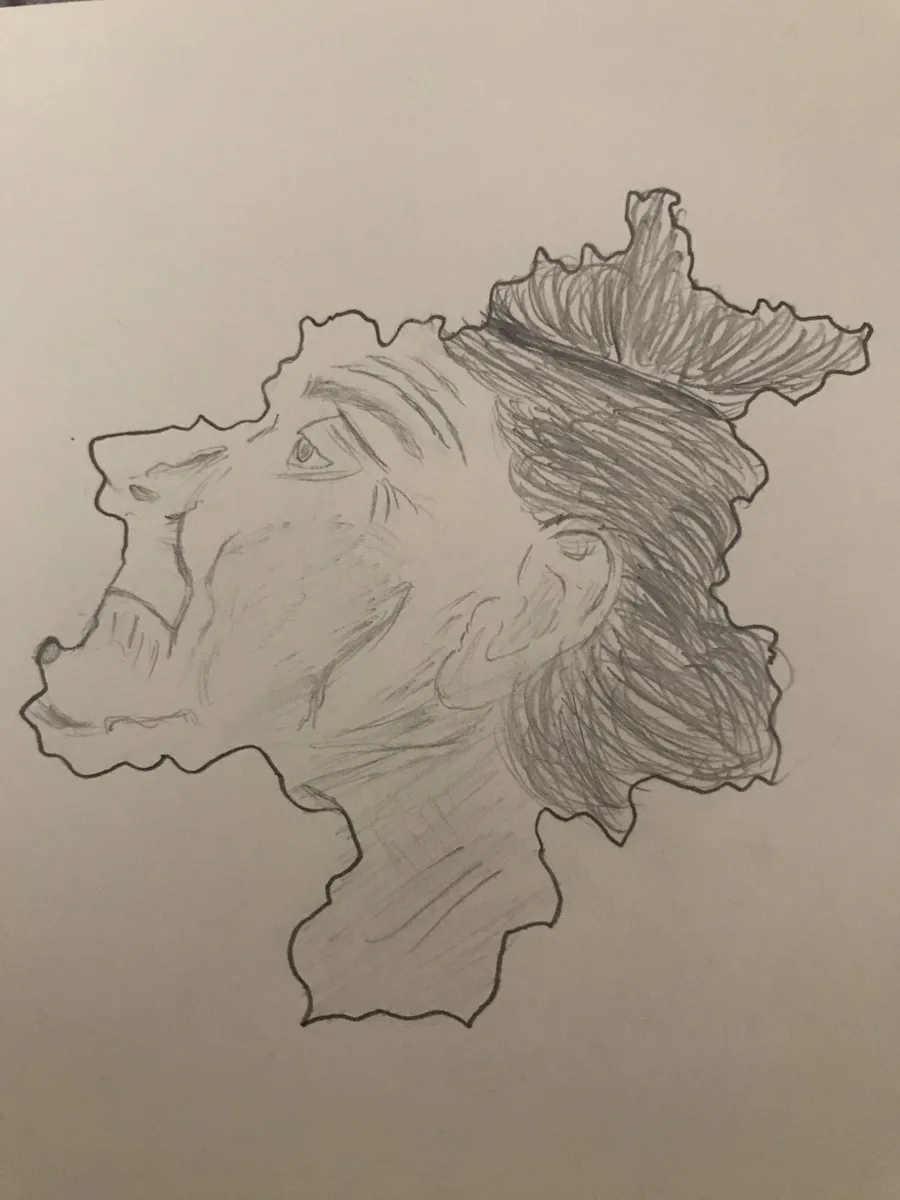
Input preparation example: a photographed pencil drawing. This is not the input used in the real result below.
The real example
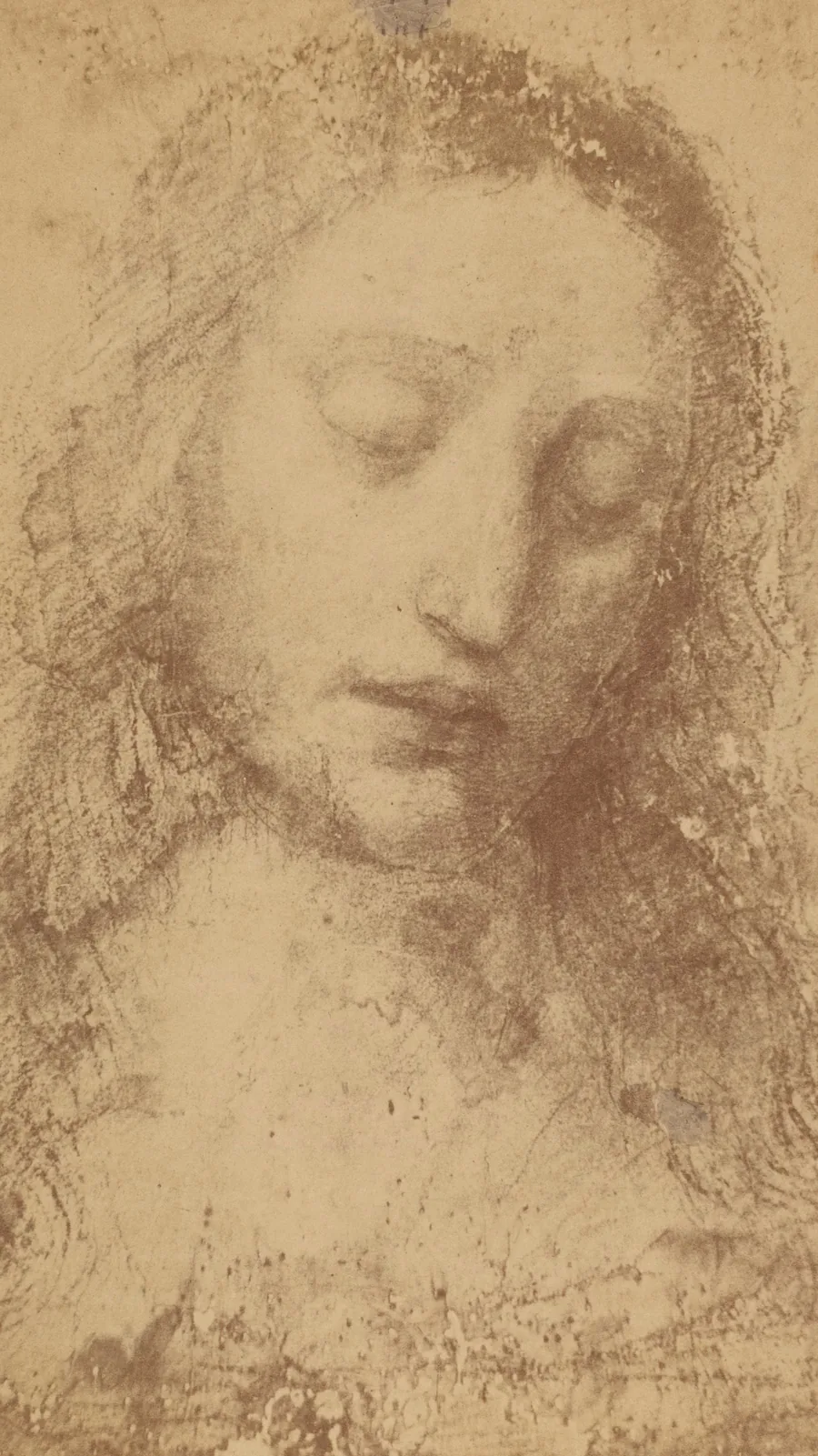
What happens in the clip. For the first moments the video stays close to the faded study. Then the face sharpens: the eyes open, the head lifts and turns a little, and the view moves in closer.
What did not stay. By the last frames the picture reads as a cleaner, more finished drawing than the original. The model redrew the features and the shading instead of keeping the artist's own strokes. That is typical of this kind of effect: it is good for seeing an idea move, not for preserving every mark.
Step by step
- Open the Drawings to Life page and find the upload area.
- Choose your prepared image and check that the whole drawing is visible.
- Sign in if needed, check the credit cost shown on the page, and start the run.
- Watch the result before you download or share it. You can also check the status of a run in My creations.
What it costs
One run currently costs 200 credits, the highest price of the Zorvel effects. In the smallest credit pack (1,000 credits) that is 5 runs. See Zorvel pricing and credit packs for plans and packs. A generation confirmed as failed is refunded automatically.
Limits to keep in mind
- Fine lines, anatomy and small objects can drift or be redrawn between frames.
- You cannot choose a walk, a dance or any other movement.
- It does not replace hand-made or frame-by-frame animation.
Try it
Animate your drawing with Zorvel's Drawings to Life. Prefer a still image? Read how to turn a photo into a cartoon, or compare all Zorvel AI effects side by side.
About the example: the input is a crop of a photographic reproduction of Leonardo da Vinci's study of the head of Christ, held by the Rijksmuseum (RP-F-00-352) and published on Wikimedia Commons under CC0. The Rijksmuseum does not endorse Zorvel. The output was generated from that crop during Zorvel's own test run on 13 November 2026.
